How to Make and Receive Calls on Windows with Phone Link
Engadget walks through setting up the Windows Phone Link app so you can place and answer calls from your desktop, sync messages, and control notifications without reaching for your phone.
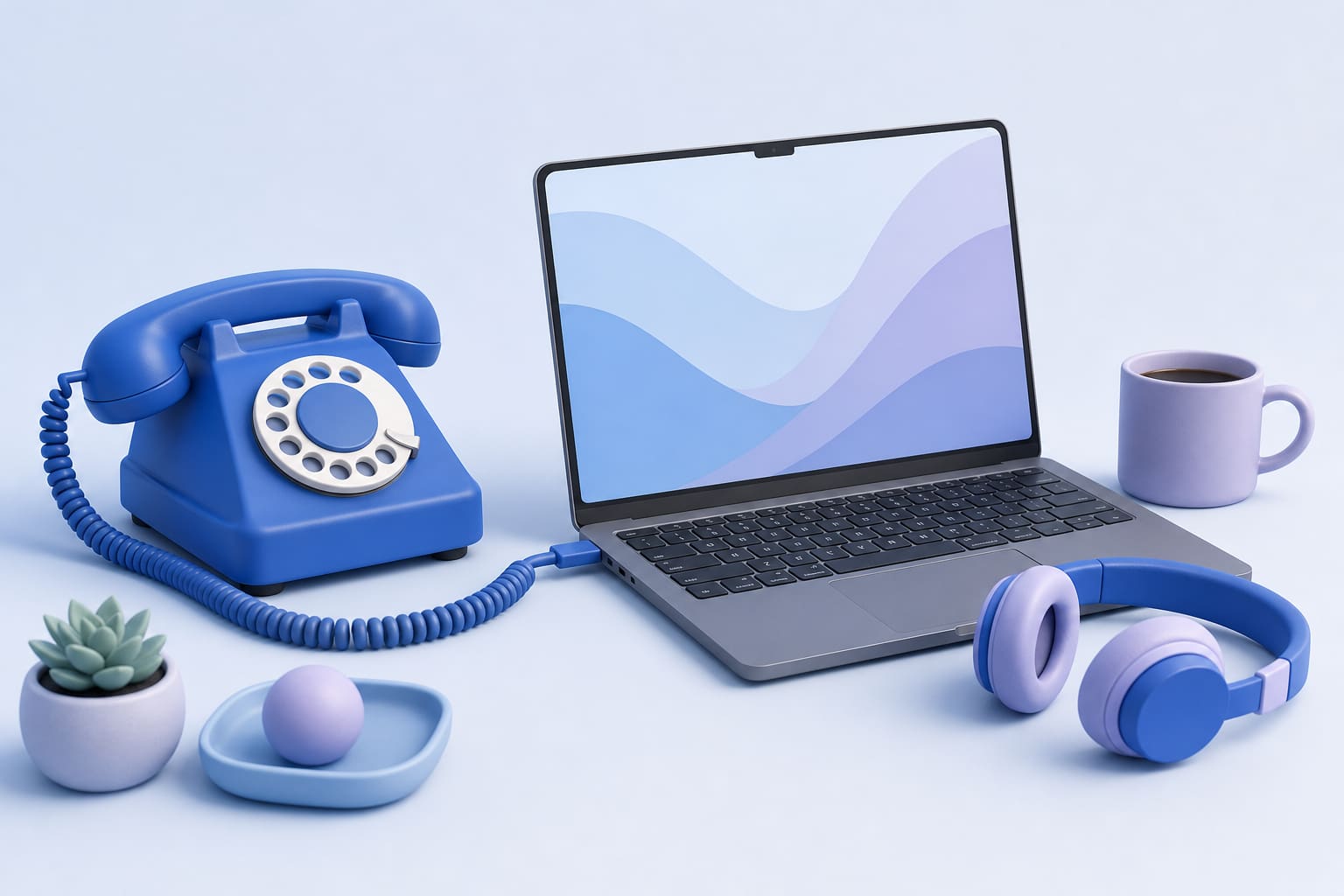
Engadget published a step‑by‑step guide on October 18, 2026 showing how Windows 11 users can use the built‑in Phone Link app to make and receive standard phone calls from their computer. The article explains the pairing process for both Android and iPhone, highlights feature differences, and offers practical tips for a reliable experience.
What Phone Link Provides
Phone Link is included with recent builds of Windows 11 and acts as a bridge between your desktop and mobile device. Once paired, the Calls tab lets you dial a contact or use a virtual keypad for one‑off numbers. The app also mirrors texts, shows notifications, and (on Android) can expose recent photos, Do Not Disturb status, and music controls. According to Engadget, the iPhone side is limited to calling, texting, and viewing or dismissing notifications, while Android users get a richer set of options.
Preparing Your PC
Before you start, make sure the Phone Link app is up to date. Open the Microsoft Store, go to the Downloads tab, and select Check for updates. Apply any available update for Phone Link. It is also a good idea to run Windows Update (Settings > Windows Update) to install the latest system patches. These steps reduce the chance of compatibility hiccups during pairing.
Pairing an Android Device
- Install the Link to Windows app from the Google Play Store on your phone.
- Open Phone Link on the PC and choose Android as the device type.
- Follow the on‑screen QR code prompt; the phone will scan the code and request Bluetooth permission.
- Ensure Bluetooth is active on both devices. While the initial handshake uses Bluetooth, the ongoing call connection can travel over Wi‑Fi or cellular data.
- Grant any permission prompts the Android app presents, contacts, call logs, microphone, and storage are common.
- After pairing, you will see your contacts synced to the Calls tab and can start dialing.
The article notes that Android users also gain the ability to view the last 2,000 photos in their camera roll directly from the PC, which can be handy for quick inserts into documents.
Pairing an iPhone
- Install the Link to Windows app from the Apple App Store.
- In Phone Link on the PC, select iPhone and scan the displayed QR code with your iPhone’s camera.
- When prompted, enable Bluetooth on both devices.
- Complete the pairing by tapping Pair on the PC and confirming the code on the phone.
- Open Settings > Bluetooth on the iPhone, find the PC’s name, and tap the info icon to adjust contact sync options.
Engadget mentions that iPhone support focuses on calls, texts, and notification handling, without the photo or Do Not Disturb features available on Android.
Making and Receiving Calls
After pairing, open the Calls tab in Phone Link. You can search for a synced contact or use the on‑screen dial pad for a new number. Incoming calls appear automatically; you can answer with a click. Keeping the phone nearby is advisable to maintain a strong signal, especially if you are in a location with weak Wi‑Fi.
If you plan to use the feature regularly, consider a headset with a microphone. This keeps your voice private and prevents coworkers from overhearing the conversation. A gaming headset works well because it often includes a noise‑cancelling mic.
Practical Setup Checklist
- Update software: Microsoft Store → Phone Link update; Windows Update for OS patches.
- Enable Bluetooth on both PC and phone before starting the pairing wizard.
- Install the correct companion app (Link to Windows) from the appropriate app store.
- Grant required permissions on the phone (contacts, microphone, storage, call logs).
- Test a call: place a short test call to confirm audio quality and connection stability.
- Adjust notification settings in Phone Link > Settings > Features to reduce banner clutter.
- Consider a headset for privacy and consistent microphone quality.
Managing Data and Privacy
Phone Link displays private information such as contact names, recent messages, and notification banners. Engadget suggests reviewing the General settings in Phone Link to control how much data appears in desktop notifications and whether unread badges are shown. This helps avoid the impression that new alerts are waiting when they are simply old items resurfacing on your lock screen.
Spam calls can still ring through, but you can use your phone’s built‑in spam filter or a third‑party call‑blocking app. The PC will respect the phone’s block list, so unwanted numbers will not interrupt your workflow.
Why It Matters for Small Teams
For nonprofit staff, small business owners, and public‑sector employees who spend most of the day at a desk, handling calls from a PC reduces context switching. You can keep your notes, documents, and conference calls in one place while still answering client or constituent calls. The feature also supports remote work scenarios where a laptop may be the primary device.
By following Engadget’s guide, you can set up a reliable call solution without purchasing additional VoIP hardware. The built‑in integration works with your existing carrier number, preserving continuity for contacts who prefer traditional phone calls.
Bottom line: Windows Phone Link offers a straightforward way to turn your Windows 11 PC into a calling station. Updating the app, pairing via Bluetooth, and adjusting notification settings are the key steps. Once configured, you can place and receive calls, send texts, and keep notifications in sync, all while staying at your desk.
If you need help customizing Phone Link for your organization or integrating it with other communication tools, reach out to us.
Sources
This post was drafted with AI from the reporting linked above and published by Jones Web Designs. For full details, read the original sources.