Google Wallet rolls out stacked card list redesign for Android
Google Wallet’s new stacked card list shows a full card and a preview of the next, letting Android users tap the card they need without swiping through a carousel.
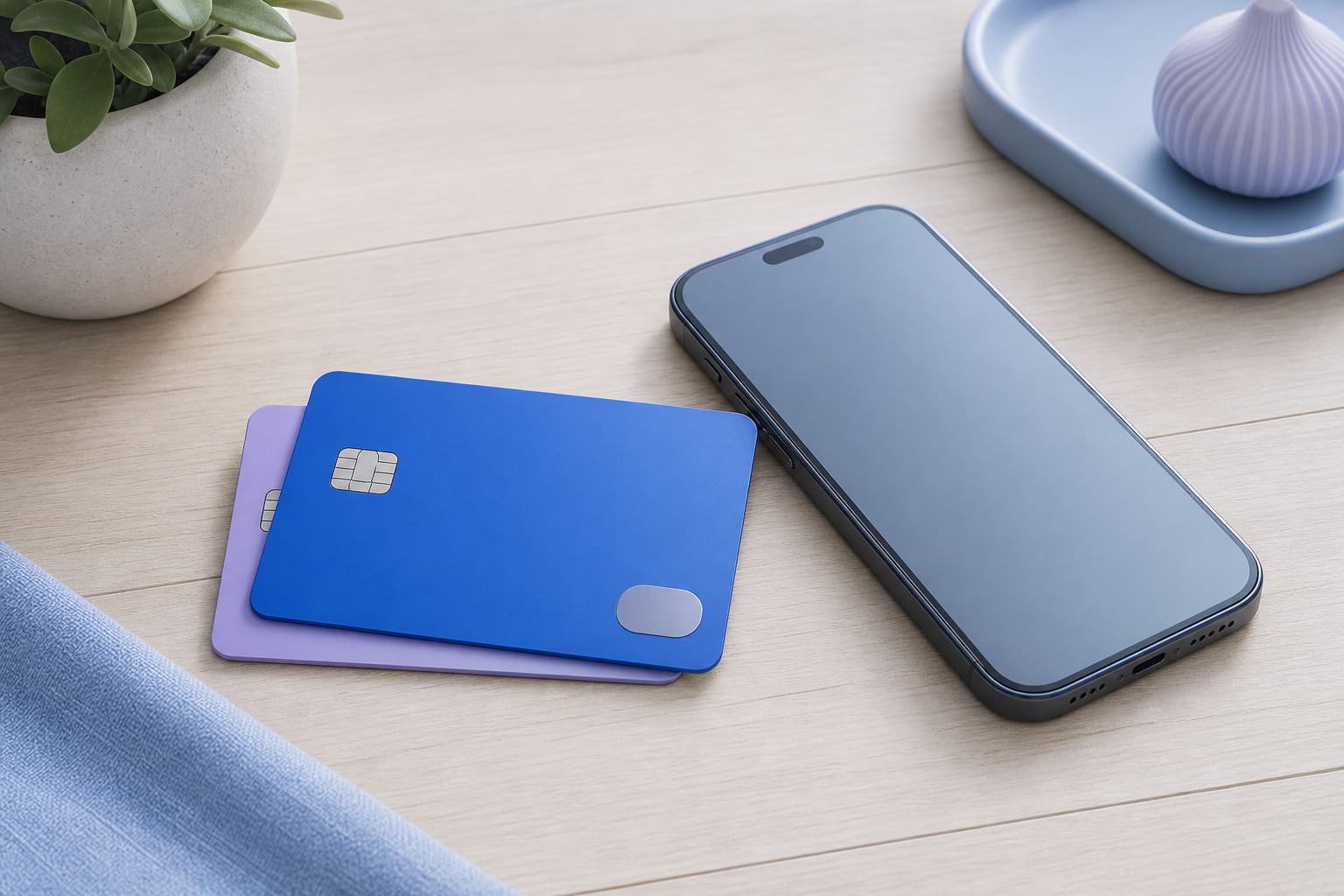
Google Wallet for Android is now rolling out a stacked card list redesign that replaces the carousel view of stored payment methods. The change appears as a full‑size preview of the most recent card with a sliver of the next card above it, and users can tap or swipe down to see a fuller list.
What the redesign looks
According to 9to5Google the homepage now shows one full card preview and the edge of a second card at the top. Tapping or swiping down opens a fullscreen layout where most of each card is visible. A gear icon in the top‑right corner opens card details and transaction history, while a “Manage payment methods” button at the bottom lets users reorder cards and choose a default. The new layout is intended for one‑handed use, especially when the most used cards are placed near the bottom of the stack.
How it changes everyday use
The previous carousel required users to swipe left or right to locate a specific card, which could be cumbersome on larger phones or when the default card was not the one needed for a purchase. With the stacked list, a user can see the next card without extra gestures and can select the desired card with a single tap. The added gear icon adds one extra tap to view details, but most everyday tap‑to‑pay actions are quicker because the card is fully visible.
Comparison to the previous carousel
The older design displayed a sliver of the next and previous cards at the edges of the screen, giving a sense of continuity but often hiding the card numbers until the user swiped. The new stacked view keeps the same visual cue of a second card peeking out, but it places that preview at the top instead of the sides. This shift makes the list easier to scroll with a thumb while holding the phone in one hand. Android Authority notes that the redesign "lets you now tap the one you want from an expanded list," removing the need for repeated swipes.
Implications for developers and payment integrators
The redesign is delivered as a server‑side update, which means the underlying Wallet APIs remain unchanged. Apps that launch Google Wallet via intent or deep link should continue to work, but the visual flow a user sees after the intent will be the new stacked view. Developers may want to test the hand‑off experience on devices that have received the update to confirm that the expected card is highlighted. If your app displays a custom prompt that references the old carousel layout, consider updating the wording to match the stacked design.
Steps for small businesses and nonprofits
- Test the new layout on a few employee devices to confirm that tap‑to‑pay still works with your point‑of‑sale system.
- Update any internal documentation that shows screenshots of the Google Wallet home screen.
- If you provide payment cards to staff, remind them to set the most frequently used card as the default in the “Manage payment methods” area.
- Check that the gear icon does not hide any required card information for expense reporting; adjust your processes if needed.
Things to monitor
The redesign is being rolled out gradually, so not every Android device will receive it at the same time. Keep an eye on device logs for any errors when launching the fullscreen view, especially on older Android versions. Also watch for future updates that might add more customization options or address the extra tap required to view transaction history. Staying aware of these changes will help you keep payment flows smooth for staff and customers alike.
Sources
- Google Wallet rolling out stacked card list redesign on Android 9to5Google
- Google Wallet's Apple-inspired card redesign is rolling out more widely Android Authority
This post was drafted with AI from the reporting linked above and published by Jones Web Designs. For full details, read the original sources.